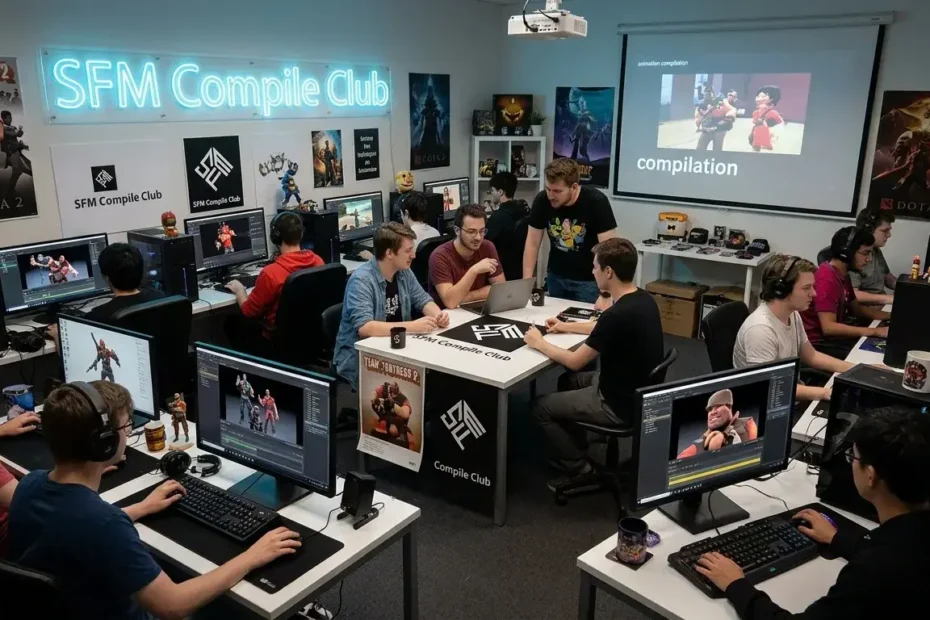
Rendering crashes destroying your Source Filmmaker projects? Hours of animation work vanish when your compile fails right at the finish line. The SFM Compile Club community fixes these exact problems every single day. Animators inside this group share battle-tested rendering settings, optimization tricks, and troubleshooting steps that actually produce results. Stop guessing and start finishing your films.
What Is the SFM Compile Club and Why Do Animators Love It?
The SFM Compile Club is a dedicated community of Source Filmmaker creators who focus on one critical skill: getting animations rendered and exported without errors. Members share custom compile configurations, scene optimization methods, and real-time troubleshooting advice.
Source Filmmaker (SFM) is a free 3D animation tool built by Valve Corporation. It runs on the Source engine and lets you create cinematic sequences using game assets from titles like Team Fortress 2, Half-Life 2, and Dota 2 [^1].
The problem most beginners face is the compile stage. You build a beautiful scene, press render, and the software freezes or crashes. The SFM Compile Club exists to eliminate that frustration through shared knowledge and tested workflows.
| Feature | What the SFM Compile Club Offers |
| Rendering Help | Step-by-step compile troubleshooting |
| Settings Library | Pre-tested render configurations |
| Scene Optimization | Methods to reduce crash frequency |
| Community Support | Real-time help from experienced animators |
| Tutorials | Beginner to advanced video guides |
How Does Source Filmmaker Rendering Actually Work?
Understanding the compile process makes troubleshooting far easier. When you hit “Render” in SFM, the software processes every frame of your animation sequence through the Source engine’s rendering pipeline.
This pipeline calculates lighting, shadows, particle effects, depth of field, and motion blur for each individual frame. A 60-second animation at 24 frames per second requires 1,440 separate frame renders.
The SFM Compile Club teaches members to break this process into manageable chunks. Instead of rendering an entire film at once, experienced animators render short sequences and stitch them together later.
| Render Stage | What Happens | Common Failure Point |
| Scene Load | SFM loads all models, textures, and maps | Missing assets cause black screens |
| Lighting Pass | Calculates shadows and global illumination | Too many light sources crash the engine |
| Effects Pass | Processes particles, smoke, and fog | Particle overload freezes the viewport |
| Frame Output | Writes each frame to your storage drive | Insufficient disk space stops the render |
What Are the Best Compile Settings for SFM Projects in 2025?
The SFM Compile Club community updates its recommended settings regularly as hardware improves and new SFM builds release. These settings balance quality with stability for most projects.
Start with these baseline configurations before adjusting for your specific scene:
- Resolution: 1920×1080 for YouTube, 3840×2160 for cinematic work
- Frame Rate: 24 fps for film look, 60 fps for smooth gameplay-style animation
- Anti-Aliasing: 4x MSAA provides clean edges without excessive render time
- Motion Blur: Enable for cinematic shots, disable for dialogue-heavy scenes
- Depth of Field: Use sparingly since it doubles render time per frame
- Ambient Occlusion: SSAO at medium quality adds realism at a reasonable cost
| Setting | Low-End PC | Mid-Range PC | High-End PC |
| Resolution | 1280×720 | 1920×1080 | 3840×2160 |
| Anti-Aliasing | 2x MSAA | 4x MSAA | 8x MSAA |
| Motion Blur | Off | On (Low) | On (High) |
| Depth of Field | Off | On (Simple) | On (Full) |
| Shadow Quality | Low | Medium | High |
| Render Time/Frame | ~30 sec | ~2 min | ~45 sec |
How Do You Fix Common SFM Compile Errors Fast?
Compile errors frustrate every Source Filmmaker animator at some point. The SFM Compile Club maintains a living database of error codes and their fixes. Here are the most frequent problems and their solutions.
Error: “Material not found” or black/pink textures. This happens when SFM cannot locate a texture file. Re-download the model from the Steam Workshop and verify your game cache through Steam settings [^2].
Error: “Out of memory” crash during render. Your scene contains too many high-polygon models or uncompressed textures. Remove background props you do not need and replace 4K textures with 2K versions.
Error: Render freezes at a specific frame. A particle effect or physics simulation is overloading the engine at that exact moment. Isolate the problematic element by disabling particle systems one at a time.
| Error Type | Cause | Fix |
| Black/Pink Textures | Missing material files | Reinstall model, verify game cache |
| Out of Memory | Too many assets loaded | Reduce poly count, compress textures |
| Frozen Render | Particle or physics overload | Disable effects, render in passes |
| Audio Desync | Frame rate mismatch | Match project FPS to audio sample rate |
| Crash on Export | Corrupted session file | Save as new session, clear undo history |
What Community Resources Does the SFM Compile Club Provide?
The SFM Compile Club goes far beyond basic troubleshooting. Members contribute original tutorials, custom scripts, and pre-built scene templates that save hours of setup time.
Popular resources include render farm configuration guides for users who want to distribute rendering across multiple computers. The community also maintains a compatibility chart showing which SFM models work best with specific compile settings.
New members gain access to a curated library of lighting presets. These presets replicate real-world lighting scenarios like golden hour, overcast skies, and neon-lit interiors without requiring manual configuration.
| Resource Type | Format | Skill Level |
| Render Presets | Downloadable .cfg files | Beginner |
| Lighting Templates | Pre-built SFM sessions | Beginner to Intermediate |
| Script Libraries | Python scripts for batch rendering | Advanced |
| Video Tutorials | YouTube and Discord streams | All levels |
| Model Compatibility Charts | Spreadsheet databases | Intermediate |
How Do You Optimize Scene Performance Before Rendering?
Scene optimization separates amateur renders from professional-quality output. The SFM Compile Club emphasizes a “clean scene” philosophy that reduces compile times by up to 60 percent.
Start by auditing your scene graph. Remove every model, light, and particle system that does not appear in the final camera frame. SFM still processes off-screen elements unless you manually disable them.
Next, check your texture resolution. Many Workshop models ship with 4K textures designed for close-up screenshots. For background characters and distant props, 1K or 2K textures produce identical visual results at a fraction of the memory cost.
- Delete unused animation sets from your timeline
- Collapse particle systems you only need for specific frames
- Replace complex physics props with static models when movement is unnecessary
- Use the “Clip” tool to hide geometry behind walls or floors
What Hardware Do You Need for Smooth SFM Compiling?
Source Filmmaker runs on modest hardware, but compiling complex scenes demands more power. The SFM Compile Club recommends the following specifications based on real-world member testing.
Your GPU handles the heaviest workload during rendering. NVIDIA cards generally outperform AMD equivalents in SFM due to better CUDA optimization within the Source engine.
RAM matters more than most beginners realize. SFM loads entire scenes into memory before rendering begins. A scene with 50+ high-poly models can easily consume 12 GB of RAM or more.
| Component | Minimum | Recommended | Ideal |
| CPU | Intel i5-8400 | Intel i7-12700K | AMD Ryzen 9 7950X |
| GPU | GTX 1060 6GB | RTX 3060 12GB | RTX 4080 16GB |
| RAM | 8 GB | 16 GB | 32 GB+ |
| Storage | 256 GB SSD | 1 TB NVMe SSD | 2 TB NVMe SSD |
| OS | Windows 10 | Windows 11 | Windows 11 Pro |
SFM vs Blender: Which Tool Fits Your Animation Goals?
This question comes up constantly inside the SFM Compile Club forums. Both tools create stunning 3D animations, but they serve different purposes and workflows.
Source Filmmaker excels at rapid prototyping with pre-built game assets. You can pull a Team Fortress 2 character into a scene, pose it, and render a short clip within 30 minutes. Blender requires you to import, rig, and texture models manually before animating.
Blender offers far greater creative freedom. You can model custom characters, build original environments, and apply physics simulations that SFM simply cannot handle. The trade-off is a steeper learning curve and longer production timelines.
| Comparison Factor | Source Filmmaker | Blender |
| Cost | Free | Free |
| Learning Curve | Low to Medium | High |
| Asset Library | Massive (Steam Workshop) | Growing (Blender Market) |
| Custom Modeling | Not supported | Full modeling suite |
| Render Quality | Good (Source engine limits) | Excellent (Cycles/Eevee) |
| Best For | Game fan films, quick clips | Original short films, professional work |
How Do You Complete Your First SFM Compile Step by Step?
Your first successful render builds confidence and teaches you the workflow you will repeat for every future project. Follow this process recommended by SFM Compile Club veterans.
Step 1: Open SFM and load a simple map like “cp_badlands.” Add one character model and one light source. Keep the scene minimal.
Step 2: Create a 5-second animation clip. Move the character from point A to point B using basic keyframes.
Step 3: Open the Render Settings dialog. Set resolution to 1280×720 and frame rate to 24 fps. Disable motion blur and depth of field for this test.
Step 4: Click “Render” and select “Image Sequence” as your output format. Never render directly to video for your first attempt since a crash will destroy the entire file.
Step 5: After rendering completes, import the image sequence into a video editor like DaVinci Resolve or Shotcut. Export your final video from there.
What Advanced Rendering Techniques Do SFM Compile Club Members Use?
Experienced animators inside the SFM Compile Club push Source Filmmaker far beyond its intended limits. These techniques require patience but produce results that rival professional animation studios.
Multi-pass rendering involves rendering the same scene multiple times with different settings. One pass captures lighting, another captures shadows, and a third captures ambient occlusion. You composite these passes in post-production for maximum control.
Progressive refinement starts with a low-quality render to verify timing and camera angles. Once the animation reads correctly, the animator increases settings incrementally rather than jumping straight to maximum quality.
- Use the “poster” render mode for single high-quality frames
- Apply temporal anti-aliasing across multiple sub-frame samples
- Render alpha channels separately for complex compositing work
- Export depth maps for post-production depth of field effects
How Can You Join the SFM Compile Club Community?
Getting involved with the SFM Compile Club takes less than five minutes. The community operates primarily through Discord servers and Steam Community groups dedicated to Source Filmmaker production.
Search for “SFM Compile Club” on Discord’s server discovery page or browse the Steam Community hub for Source Filmmaker groups [^3]. Most groups welcome beginners and assign mentors to new members.
Once you join, introduce yourself in the newcomer channel and share a screenshot of your current project. Community members respond quickly to specific questions about render settings, model compatibility, and scene optimization.
What Does the Future Hold for Source Filmmaker and the Compile Club Movement?
Valve released Source 2 Filmmaker (S2FM) alongside Half-Life: Alyx, and the SFM Compile Club community has already begun migrating workflows to the new engine. S2FM supports modern rendering features like real-time ray tracing and Vulkan API integration.
The original Source Filmmaker remains active and popular. Valve continues to distribute it through Steam, and the Workshop receives new models and maps daily. The SFM Compile Club supports both versions and helps members transition smoothly.
Community-driven development keeps SFM alive. Fan-made tools, scripts, and plugins fill gaps that Valve has not addressed, and the compile club movement ensures that knowledge transfers to the next generation of animators.
Start Rendering Smarter Today
Your Source Filmmaker projects deserve to reach the finish line. The SFM Compile Club community stands ready to help you eliminate crashes, slash render times, and produce animations you feel proud to share.
Open Source Filmmaker right now. Load your most frustrating unfinished project. Apply the optimization steps from this guide and attempt a test render at 720p. You will see the difference immediately.
Join the SFM Compile Club on Discord or Steam tonight. Post your first render. Ask your first question. The animators inside this community remember exactly how frustrating that first compile failure felt, and they want to help you move past it.
Featured Guides

Home›Blog›Blog›SFM Compile Club: The Complete Source Filmmaker Rendering and Animation Guide You…

Home›Blog›Blog›SFM Compile Club: The Complete Source Filmmaker Rendering and Animation Guide You…

Home›Blog›Blog›SFM Compile Club: The Complete Source Filmmaker Rendering and Animation Guide You’re…